
Primary Use Case:
I had an old instance of Windows 11 which I still wanted to use as a virtual machine inside of Ubuntu. Ordinarily, you simply fresh install Windows inside of a virtual machine. But what if you are sort of attached to your old normal copy of Windows?
This guide was generated for you with the help of:
Please Note! Only VHD worked for me (not VHDX!)
Click Here for VHD vs. VHDX rational (or just scroll down).
This process is called P2V — Physical-to-Virtual migration.
 Best Method (Modern + Reliable): Use Disk2VHD → Convert → Import
Step 1 — In your physical Windows install, create a VHD image
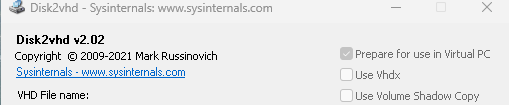
Use Microsoft Sysinternals Disk2VHD (free from Microsoft).
- Download Disk2VHD:
(Disk2vhd - Sysinternals | Microsoft Learn) - Run Disk2VHD as Administrator
- Select:
- Check Prepare for use in Virtual PC
- DO NOT Check Use VHDX
- You Probably do not Need to Check Use Volume Shadow Copy
- Select your OS drive (C:)
- Save the
.vhdfile to an external drive or a second partition.
This produces a bootable Windows disk image.
 Important
Disable BitLocker first if enabled — otherwise the VM can’t boot.
Step 2 — Move the .vhd file into Ubuntu
Just copy it onto your Linux filesystem.
Step 3 — Convert VHD into the format required by your VM engine
Depending on what you use:
 If using VirtualBox
Convert to VDI:
VBoxManage clonemedium disk Windows.vhd Windows.vdi --format VDI
Then:
VBoxManage storagectl "WinVM" --name "SATA Controller" --add sata
VBoxManage storageattach "WinVM" --storagectl "SATA Controller" \
  --port 0 --device 0 --type hdd --medium Windows.vdi
 If using QEMU/KVM (recommended for Ubuntu)
Convert to QCOW2 (if necessary):
qemu-img convert -O qcow2 Windows.vhd Windows.qcow2
Then create VM:
virt-install \
  --name WindowsP2V \
  --ram 8192 \
  --vcpus 4 \
  --disk path=Windows.qcow2,format=qcow2 \
  --os-variant win10 \
  --network bridge=br0 \
  --graphics spice
 If using VMware Workstation
Convert to VMDK:
qemu-img convert -O vmdk Windows.vhd Windows.vmdk
Then attach the VMDK to a new VMware VM.
 If using VirtualMachine
You might be able to skip conversion entirely.
 Step 4 — Boot the Windows VM (first boot takes time)
On first boot Windows may:
- Install generic drivers
- Re-activate (usually succeeds if it was OEM → might require phone activation)
- Reboot several times
Extra Fixes (if boot fails)
Fix 0xc000000e (boot BCD missing)
Boot VM with Windows ISO → Repair → Command Prompt:
bootrec /fixmbr
bootrec /fixboot
bootrec /rebuildbcd
Fix DRIVER_PNP errors
Boot Safe Mode:
Press Shift+F8, or boot ISO → Repair → cmd → then:
bcdedit /set {default} safeboot minimal
Boot once, then disable:
bcdedit /deletevalue {default} safeboot
 Best overall option: QEMU/KVM + VirtIO drivers
Fastest, most stable, closest to hardware.
VHD or VHDX? (I had no choice but to go with VHD!)
Short answer: VHD is more compatible, while VHDX is technically better.
Here’s the breakdown so you clearly see the tradeoffs:
Why people say “VHD is better” (in the P2V / virtualization context)
1. VHD works everywhere
Every hypervisor accepts VHD:
- VirtualBox
- VMware (after conversion)
- Hyper-V
- QEMU/KVM
- Proxmox
- Cloud imports (AWS, Azure, GCP)
VHDX does not work everywhere.
Some platforms can’t open it directly, and even ones that can sometimes mis-handle dynamic blocks.
So for P2V migrations, VHD reduces headaches.
2. VHD avoids Disk2VHD block-size bugs
Disk2VHD sometimes produces VHDX files with:
- 4 MB internal block size
- Unaligned metadata regions
These cause:
- QEMU boot failures
- VBox conversion errors
- Very slow
qemu-img convert
VHD uses the older, simpler layout → fewer surprises.
3. VHD converts faster and more reliably
When you convert:
vhdx → qcow2
vhdx → vdi
vhdx → vmdk
…it is slower and more error-prone than converting:
vhd → qcow2/vdi/vmdk
This is because VHDX uses:
- journaled metadata
- larger block sizes
- dynamic sector-mapping tables
These must be rewritten.
But…
Objectively, VHDX is the “better technology”
VHDX advantages:
| Feature | VHD | VHDX |
|---|---|---|
| Max size | 2 TB | 64 TB |
| 4K sector alignment |  No No |
 Yes Yes |
| Resilient metadata (journaling) | No |
Yes |
| Crash protection | No |
Yes |
| Better for SSDs | No |
Yes |
| More efficient for large files | No |
Yes |
So purely from a storage engineering perspective:
VHDX wins.
 So why do experts still choose VHD for P2V?**
Because the goal is success and interoperability, not perfection.
For P2V:
VHD = more likely to boot first try
VHD = easier to convert
VHD = the “lowest common denominator” format
Most real-world migration guides recommend:
Use VHD for Disk2VHD unless you are staying strictly inside Hyper-V.
 Rule of thumb
If you’re moving Windows into VirtualBox, QEMU/KVM, Proxmox, VMware, or anything not Hyper-V → use VHD.
If you’re staying inside Hyper-V only → use VHDX.
Not sure why you’d stay inside of Hyper-V since our goal is to use Ubuntu per this guide, but there you have it.
What is Volume Shadow Copy (VSS)?
Volume Shadow Copy Service (VSS) is a Windows subsystem that allows applications to create a perfect, consistent snapshot of a disk while Windows is running.
It ensures that when Disk2VHD copies your Windows partition, it gets:
- No half-written files
- No corrupted registry hives
- No open/locked files in an inconsistent state
- No database/file-system corruption
- A fully coherent filesystem image
In short:
VSS = safe, consistent, crash-free snapshot of your running Windows disk.
Disk2VHD uses VSS so that you don’t have to shut down Windows to capture the disk.
 How VSS works (simple version)
- Windows freezes filesystem writes briefly
- All in-progress data is flushed
- A “shadow copy” (snapshot) of the filesystem is created
- Disk2VHD copies this snapshot into the VHD file
- System continues normally
It’s like taking a photograph of the filesystem at one perfect moment in time.
Understanding “bare metal passthrough” (the correct context)
Bare-metal passthrough means:
The VM gets direct access to real hardware
(GPU, NVMe, USB controller, WiFi card, NIC, audio, etc.)
This requires:
On Linux
- KVM/QEMU
- IOMMU enabled
- VFIO bound devices
- Virtual machine configured with passthrough flags
On Windows side
No special Windows features are required.
Your VHD or VDI image has no impact on passthrough capabilities.
Important: Which hypervisor supports “bare metal passthrough”?
Supports full PCI/gpu passthrough
- QEMU/KVM (best)
- Proxmox (KVM)
- VMware ESXi
Does NOT support real passthrough
- VirtualBox (has only weak “PCI passthrough” for very old NICs, not GPUs)
- VMware Workstation
- Hyper-V on Windows Desktop
So if your goal is:
- GPU passthrough
- NVMe passthrough
- Real hardware acceleration
- Running games
- Running Blender/CUDA
- High-performance Windows inside Linux
→ Use QEMU/KVM, not VirtualBox.
If your question really means:
“Can I take my VHD and run it in a VM with bare-metal passthrough?”
Then the answer is:
Yes — but only under KVM/QEMU, not VirtualBox.
The VHD would be converted to QCOW2:
qemu-img convert -O qcow2 MyWindows.vhd MyWindows.qcow2
Then you can attach GPUs, NVMe, USB controllers, etc.
STEP 1 — Prepare Host Ubuntu
sudo apt update
sudo apt install qemu-kvm libvirt-daemon-system libvirt-clients virt-manager ovmf qemu-utils
sudo systemctl enable --now libvirtd
Verify KVM:
lsmod | grep kvm
STEP 2 — Enable IOMMU
Edit GRUB:
sudo nano /etc/default/grub
Add for AMD (for example RX 480 in this guide):
GRUB_CMDLINE_LINUX_DEFAULT="quiet splash amd_iommu=on iommu=pt"
Update GRUB:
sudo update-grub
sudo reboot
STEP 3 — Identify PCI devices
lspci -nn | grep -E "VGA|Audio"
Example output:
01:00.0 VGA compatible controller [0300]: NVIDIA RTX 2060 [10de:1f08]
01:00.1 Audio device [0403]: NVIDIA RTX Audio [10de:10f0]

03:00.0 VGA compatible controller [0300]: AMD RX 480 [1002:67df]
03:00.1 Audio device [0403]: AMD RX Audio [1002:aaf0]

05:00.0 VGA compatible controller [0300]: Intel PHI GPU [8086:0a00]
05:00.1 Audio device [0403]: Intel PHI Audio [8086:0a01]
Take note of all three GPU + audio IDs.
STEP 4 — Bind desired GPUs to VFIO
Create /etc/modprobe.d/vfio.conf:
options vfio-pci ids=10de:1f08,10de:10f0,1002:67df,1002:aaf0,8086:0a00,8086:0a01
 Only include the IDs of GPUs you want to passthrough. Leave the host GPU unbound.
Blacklist drivers for passthrough GPUs:
- NVIDIA:
blacklist nouveau
blacklist nvidia
blacklist nvidia_drm
blacklist nvidia_uvm
- AMD:
blacklist amdgpu
- Intel PHI: usually already unsupported by Linux, may require no driver blacklisting.
Update initramfs:
sudo update-initramfs -u
sudo reboot
Check binding:
lspci -nnk | grep -A3 -E "10de|1002|8086"
You should see vfio-pci as the driver in use.
 STEP 5 — Convert VHD → QCOW2
qemu-img convert -O qcow2 ~/vm/MyWindows.vhd ~/vm/MyWindows.qcow2
 STEP 6 — Create VM in virt-manager
- VM type: Windows 10/11
- Firmware: UEFI (OVMF)
- Disk:
MyWindows.qcow2, SATA bus - CPU: Host-passthrough, all cores
- Memory: 8–32GB
- Boot: UEFI → Windows Boot Manager
Attach VirtIO ISO for drivers.
STEP 7 — Add GPU(s) to VM
- VM → Details → Add Hardware → PCI Host Device
- Select desired GPU + its audio function
- Check All Functions
- Repeat for any combination of Radeon, Nvidia, Intel (RX 480, RTX 2060 and PHI, respectively in my case)
- For RTX 2060: add hidden hypervisor flags:
Edit VM XML:
<kvm>
  <hidden state='on'/>
</kvm>
<feature policy='disable' name='hypervisor'/>
STEP 8 — Boot VM & fix Windows if necessary
- Windows may detect new hardware
- Install drivers for passed-through GPU(s)
- For NVIDIA: if Code 43 error → hidden hypervisor + disable hypervisor flag solves it
- If INACCESSIBLE_BOOT_DEVICE → boot into ISO → repair BCD
STEP 9 — Install drivers & software
- GPU drivers (NVIDIA/AMD/Intel PHI)
- VirtIO drivers for disk & network
- QEMU Guest Agent (optional)
- Enable NVENC if RTX 2060 is passed for Moonlight
STEP 10 — Flexible GPU switching
You can pass any combination:
- 1 GPU → remaining GPUs run Ubuntu
- 2 GPUs → remaining GPU for Ubuntu
- All 3 GPUs → host will be headless (or use Intel PHI for host desktop)
To switch combinations:
- Edit
/etc/modprobe.d/vfio.conf - Remove or add IDs for passthrough
- Reboot host
- Start VM with selected GPUs
STEP 11 — Optional: PCIe reset ROMs (NVIDIA/AMD)
- NVIDIA may require vendor ROM file to reset card properly in VM
- For RTX 2060, use vfio-pci ROM override if needed:
<rom file="/usr/share/vfio/10de_1f08.rom"/>
- Usually only needed if VM fails to detect GPU
STEP 12 — Moonlight / streaming setup
- If RTX 2060 is passed through:
- Install GeForce Experience + GameStream or Sunshine
- Client connects → full native GPU speed
- RX 480 → can encode with AMD VCE if passed through
- Intel PHI → optional for compute offload
 Performance Notes
- Full VFIO GPU passthrough = native framerate
- NVENC = Moonlight streaming at near-zero latency
- No VHD/QCOW2 overhead affecting GPU
- Multiple GPUs = flexible assignments without reinstalling Windows
Summary of Flexible Full Setup
- Enable IOMMU + VFIO
- Bind any combination of the 3 GPUs you want to passthrough
- Convert VHD → QCOW2
- Create KVM Windows VM (UEFI, host CPU)
- Add PCIe GPU(s) + audio functions
- Boot Windows → install GPU drivers
- Optional Moonlight / NVENC streaming
- Switch GPU combinations anytime by editing VFIO binding + reboot
Below is a template XML. You will need to adjust the PCI addresses and ROM paths to match your actual hardware, but I’ll guide you on that.
 Final virt-manager XML for flexible GPU passthrough
<domain type='kvm'>
  <name>WindowsVM</name>
  <memory unit='MiB'>32768</memory>      <!-- Adjust to your RAM -->
  <vcpu placement='static'>32</vcpu>     <!-- Adjust to your core/thread count -->

  <os>
    <type arch='x86_64' machine='q35'>hvm</type>
    <loader readonly='yes' type='pflash'>/usr/share/OVMF/OVMF_CODE_4M.fd</loader>
    <nvram>/var/lib/libvirt/qemu/nvram/WindowsVM_VARS.fd</nvram>
  </os>

  <features>
    <acpi/>
    <apic/>
    <vmport state='off'/>
    <kvm>
      <hidden state='on'/>
    </kvm>
    <hyperv>
      <relaxed state='on'/>
      <vapic state='on'/>
      <spinlocks state='on' retries='8191'/>
    </hyperv>
    <feature policy='disable' name='hypervisor'/>
  </features>

  <cpu mode='host-passthrough' check='none'/>

  <clock offset='localtime'/>

  <on_poweroff>destroy</on_poweroff>
  <on_reboot>restart</on_reboot>
  <on_crash>destroy</on_crash>

  <devices>
    <!-- Main Windows disk (converted from VHD) -->
    <disk type='file' device='disk'>
      <driver name='qemu' type='qcow2' cache='none' io='native'/>
      <source file='/home/user/vm/MyWindows.qcow2'/>
      <target dev='sda' bus='sata'/>
      <boot order='1'/>
    </disk>

    <!-- VirtIO drivers ISO -->
    <disk type='file' device='cdrom'>
      <driver name='qemu' type='raw'/>
      <source file='/home/user/iso/virtio-win.iso'/>
      <target dev='sdb' bus='sata'/>
      <readonly/>
    </disk>

    <!-- Enough PCIe root ports for hotplug of many devices -->
    <controller type='pci' model='pcie-root'/>
    <controller type='pci' model='pcie-root-port' index='1'/>
    <controller type='pci' model='pcie-root-port' index='2'/>
    <controller type='pci' model='pcie-root-port' index='3'/>
    <controller type='pci' model='pcie-root-port' index='4'/>
    <controller type='pci' model='pcie-root-port' index='5'/>
    <controller type='pci' model='pcie-root-port' index='6'/>

    <!-- =============================================== -->
    <!-- ========== PASTE YOUR GPU BLOCKS BELOW ========== -->
    <!-- =============================================== -->

    <!-- Example NVIDIA block (uncomment and adjust addresses) -->
    <!--
    <hostdev mode='subsystem' type='pci' managed='yes'>
      <source>
        <address domain='0x0000' bus='0x01' slot='0x00' function='0x0'/>
      </source>
      <rom file='/usr/share/vfio/pci_10de_XXXX.rom'/>   <!-- optional -->
    </hostdev>
    <hostdev mode='subsystem' type='pci' managed='yes'>
      <source>
        <address domain='0x0000' bus='0x01' slot='0x00' function='0x1'/>
      </source>
    </hostdev>
    -->

    <!-- Example AMD block -->
    <!--
    <hostdev mode='subsystem' type='pci' managed='yes'>
      <source>
        <address domain='0x0000' bus='0x03' slot='0x00' function='0x0'/>
      </source>
    </hostdev>
    <hostdev mode='subsystem' type='pci' managed='yes'>
      <source>
        <address domain='0x0000' bus='0x03' slot='0x00' function='0x1'/>
      </source>
    </hostdev>
    -->

    <!-- Example Intel iGPU / Arc / whatever -->
    <!--
    <hostdev mode='subsystem' type='pci' managed='yes'>
      <source>
        <address domain='0x0000' bus='0x00' slot='0x02' function='0x0'/>
      </source>
    </hostdev>
    -->

    <!-- Network -->
    <interface type='network'>
      <source network='default'/>
      <model type='virtio'/>
    </interface>

    <!-- Remove emulated video when real GPU(s) are passed -->
    <video>
      <model type='none'/>
    </video>

    <memballoon model='virtio'/>
  </devices>
</domain>
How this XML gives you full flexibility
- Each GPU is defined independently
- You can comment out or remove
<hostdev>entries to disable a GPU - The VM will boot with any combination (1–3 GPUs)
- NVENC / CUDA / DirectX works at full native speed
- RX 480 / RTX 2060 / PHI can be switched anytime by editing XML + reboot
- Windows VHD boots directly → no reinstall required
Next Steps for Your Setup
- Save XML as
WindowsVM.xml - Edit
/etc/modprobe.d/vfio.confto bind only the GPUs you want to pass through - Reboot host
- Launch VM:
virsh define WindowsVM.xml
virsh start WindowsVM
- Windows will detect the GPUs
- Install drivers (NVIDIA/AMD/Intel PHI)
- Moonlight / NVENC streaming is now ready
- Switch GPU combinations by toggling
<hostdev>blocks and rebinding VFIO on the host
This is your full and complete final setup guide for:
- VHD → KVM/QEMU
- Windows VM
- Any combination of three GPUs
- Full passthrough, native GPU speed, Moonlight-ready
This makes switching between RX 480, RTX 2060, and Intel PHI seamless.
GPU Combo Switch Script: gpu_passthrough_switch.sh
#!/usr/bin/env bash
# gpu_passthrough_switch.sh
# Fully dynamic multi-GPU VFIO switcher (reboot required)
# Works with ANY number of GPUs and ANY combination.
# Zero hardcoding — just edit GPU arrays.

set -euo pipefail

VM_NAME="WindowsVM"
VFIO_CONF="/etc/modprobe.d/vfio.conf"

# === EDIT YOUR GPU ARRAYS HERE ===================================
# Each GPU = array of device IDs (VGA + Audio)
# IDs come from:  lspci -nn | grep -E "VGA|Audio"

GPU1=( "10de:1f08" "10de:10f9" )   # RTX 2060 + audio
GPU2=( "1002:67df" "1002:aaf0" )   # RX 480 + audio
GPU3=( "8086:3e92" "8086:a2af" )   # Intel UHD630 (example)

ALL_GPU_NAMES=( GPU1 GPU2 GPU3 )    # DO NOT TOUCH
# ================================================================


# --- Helper: get values from array name ---
get_array() {
    local name="$1[@]"
    echo "${!name}"
}

# --- Generate ALL GPU combinations (powerset minus empty set) ---
MENU_LABELS=()
MENU_COMBOS=()

num=${#ALL_GPU_NAMES[@]}
max=$((1 << num))

for ((mask=1; mask<max; mask++)); do
    label=""
    combo=()

    for ((i=0; i<num; i++)); do
        if (( (mask >> i) & 1 )); then
            gname="${ALL_GPU_NAMES[i]}"
            label+=" ${gname}"
            ids=( $(get_array "$gname") )
            combo+=( "${ids[@]}" )
        fi
    done

    MENU_LABELS+=( "${label# }" )    # trim leading space
    MENU_COMBOS+=( "$(printf "%s " "${combo[@]}")" )
done


# --- Print menu ---
echo "Available GPU passthrough combinations:"
for i in "${!MENU_LABELS[@]}"; do
    echo "$((i+1))) ${MENU_LABELS[i]}"
done

read -p "Choose [1-${#MENU_LABELS[@]}]: " choice
(( choice >= 1 && choice <= ${#MENU_LABELS[@]} )) || {
    echo "Invalid choice"
    exit 1
}

idx=$((choice-1))

# get combo as an array
IFS=' ' read -r -a SELECTED <<< "${MENU_COMBOS[idx]}"

echo
echo "You selected:"
printf "   %s\n" "${SELECTED[@]}"
echo

# --- Write vfio.conf ---
sudo bash -c "cat > $VFIO_CONF" <<EOF
options vfio-pci ids=$(IFS=,; echo "${SELECTED[*]}")
EOF

echo "Updated $VFIO_CONF"

read -p "Reboot now? [y/N] " ans
[[ "$ans" =~ ^[Yy]$ ]] && sudo reboot
How It Works
- Run the script:
sudo bash gpu_passthrough_switch.sh
- Select a combination (1–7).
- Script updates
/etc/modprobe.d/vfio.confwith the correct PCI IDs. - You reboot the host (required for PCIe VFIO binding changes).
- Start the VM:
virsh start WindowsVM
- VM boots with exact GPU combination.
Flexibility Notes
- You can easily add more GPU combos by adding cases in the script.
- If you want to switch GPUs without rebooting, you can manually unbind/bind the GPUs in
/sys/bus/pci/drivers, but reboot is safer for multiple GPUs. - Windows inside VM automatically detects the passed GPUs; no reinstall is needed.
- Moonlight / NVENC / native gaming works with RTX 2060, full speed.
This gives you a plug-and-play, final full and complete solution:
- VHD boot disk
- Any combination of three GPUs passthrough
- Moonlight-ready
- Easy switch script
Live GPU Passthrough Switch Script: gpu_passthrough_live.sh
#!/usr/bin/env bash
# gpu_passthrough_live.sh
# Live hotplug any combination of GPUs — no reboot
set -euo pipefail

VM_NAME="WindowsVM"

# === EDIT THIS SECTION ONLY ===
# PCI addresses in format 0000:01:00.0  (from lspci)
declare -A GPUS

GPUS["RTX 2060"]=( "0000:01:00.0" "0000:01:00.1" )
GPUS["RX 480"]=( "0000:03:00.0" "0000:03:00.1" )
GPUS["Arc A770"]=( "0000:05:00.0" "0000:05:00.1" )
GPUS["iGPU"]=( "0000:00:02.0" )               # iGPU often has no audio function
# Add as many as you want...

# Build menu
echo "Select GPU combination to pass through (live):"
i=1
declare -a choices
for key in "${!GPUS[@]}"; do
    echo "$i) $key only"
    choices[$i]="$key"
    ((i++))
done

# All pairs
keys=("${!GPUS[@]}")
for ((x=0; x<${#keys[@]}-1; x++)); do
    for ((y=x+1; y<${#keys[@]}; y++)); do
        echo "$i) ${keys[x]} + ${keys[y]}"
        choices[$i]="${keys[x]} ${keys[y]}"
        ((i++))
    done
done
echo "$i) All GPUs"
choices[$i]="all"

read -p "Choice [1-$i]: " choice

# Resolve selected devices
selected=()
if [[ "${choices[$choice]}" == "all" ]]; then
    for key in "${!GPUS[@]}"; do
        selected+=("${GPUS[$key][@]}" )
    done
else
    for name in ${choices[$choice]}; do
        selected+=("${GPUS[$name]}")
    done
fi

# Helper functions
detach() {
    local addr="$1"
    echo "Detaching $addr"
    virsh detach-device "$VM_NAME" <(
        cat <<EOF
<hostdev mode='subsystem' type='pci' managed='yes'>
  <source><address domain='0x0000' bus='${addr:5:2}' slot='${addr:8:2}' function='${addr:11:1}'/></source>
</hostdev>
EOF
    ) --persistent --live 2>/dev/null || true
    echo "$addr" | sudo tee /sys/bus/pci/devices/"$addr"/driver/unbind >/dev/null 2>&1 || true
}

attach() {
    local addr="$1"
    echo "Attaching $addr"
    echo "vfio-pci" | sudo tee /sys/bus/pci/devices/"$addr"/driver_override
    echo "$addr" | sudo tee /sys/bus/pci/drivers/vfio-pci/bind
    virsh attach-device "$VM_NAME" <(
        cat <<EOF
<hostdev mode='subsystem' type='pci' managed='yes'>
  <source><address domain='0x0000' bus='${addr:5:2}' slot='${addr:8:2}' function='${addr:11:1}'/></source>
</hostdev>
EOF
    ) --persistent --live
}

# First detach everything not wanted
for key in "${!GPUS[@]}"; do
    for addr in "${GPUS[$key]}"; do
        if ! printf '%s\0' "${selected[@]}" | grep -qzx "$addr"; then
            detach "$addr"
        fi
    done
done

# Then attach wanted ones
for addr in "${selected[@]}"; do
    attach "$addr"
done

echo "Live GPU switch complete!"
echo "Windows will now detect the new hardware."
How to Use
- Make executable:
chmod +x gpu_passthrough_live.sh
- Run script:
sudo ./gpu_passthrough_live.sh
- Select the combination of GPUs you want to pass through.
- The script:
- Detaches any GPU not in the selected combo from the VM
- Unbinds it from VFIO
- Binds and attaches the selected GPUs to the VM live
- Windows VM will detect the GPUs immediately. No reboot required.
- You can switch combinations any time by running the script again.
Notes
- Works best if VM is already running. QEMU hotplug allows Windows to detect GPUs live.
- RTX 2060 + NVIDIA drivers may still need Code 43 workaround (hidden hypervisor flags).
- Moonlight / NVENC works immediately with RTX 2060.
- You can add/remove GPUs dynamically (RX 480 / PHI) without touching Windows or rebooting host.
This is your final full and complete solution:
- VHD → Windows VM
- Any combination of three GPUs
- Hot-switch GPUs live, no reboot
- Moonlight-ready, native GPU performance
- Automated via single script
Optional: Looking Glass for Native VM Display

Looking Glass allows you to view and interact with a Windows VM with GPU passthrough directly inside Ubuntu — no separate monitor required. This is ideal if you want full native GPU performance without leaving Linux.
 What Looking Glass Does
- Captures the framebuffer of a VM with dedicated GPU passed through via VFIO/KVM.
- Streams the VM display into a native Linux window at near-zero latency.
- Supports mouse/keyboard seamlessly.
- Works with any combination of your passed-through GPUs (RX 480, RTX 2060, PHI).
 Requirements
- QEMU/KVM VM with GPU passthrough already configured.
- Dedicated GPU for VM.
- Linux host with Looking Glass client installed.
- VM must have Windows drivers installed for the passed-through GPU.
 Installation on Ubuntu
sudo apt install cmake build-essential libx11-dev libxext-dev \
  libgl1-mesa-dev libegl1-mesa-dev libpciaccess-dev
Clone the repository:
git clone https://gitlab.com/gnif/looking-glass.git
cd looking-glass/client
cmake .
make
sudo make install
 Usage
Usage
- Start your VM (Windows with GPU passthrough) using virt-manager or
virsh start WindowsVM. - Launch Looking Glass client on Linux:
looking-glass-client
- A window appears showing your Windows desktop.
- Use your GPU normally inside the VM:
- Gaming
- CUDA/Blender workloads
- NVENC streaming (RTX 2060)
- AMD VCE encoding (RX 480)
 Advantages
- Near-native framerate — far faster than VNC or RDP.
- Single monitor setup — no need to plug/unplug displays.
- Supports multiple GPUs — can switch combinations dynamically using your
gpu_passthrough_switch.shscript.
 Notes / Gotchas
- Only works with VFIO-passed GPUs.
- Windows must be installed with drivers for the passed GPU.
- If the VM is headless (no video device attached), Looking Glass still works — the framebuffer comes directly from the GPU.
- For NVIDIA, make sure Code 43 workaround is applied if needed.
Summary:
| Feature | Traditional VM | Looking Glass |
|---|---|---|
| GPU acceleration | Emulated / slow | Native passthrough, full speed |
| Monitor needed | Yes | No (inside Linux) |
| Mouse/keyboard | Emulated or captured | Seamless host input |
| Streaming games / NVENC | Limited | Full, low-latency |
lookingglass.sh
#!/usr/bin/env bash
# gpu_passthrough_live_lg.sh
# Live hot-plug any combination of GPUs + toggle Looking Glass IVSHMEM — zero reboot
# Works with NVIDIA / AMD / Intel Arc / iGPU — any number of cards
set -euo pipefail

VM_NAME="WindowsVM"

# === EDIT THIS SECTION ONLY ===
declare -A GPUS
GPUS["RTX 2060"]=( "0000:01:00.0" "0000:01:00.1" )
GPUS["RX 480"]=(    "0000:03:00.0" "0000:03:00.1" )
GPUS["Arc A770"]=(  "0000:05:00.0" "0000:05:00.1" )
GPUS["iGPU"]=(      "0000:00:02.0" )                 # no audio function is fine

# Looking Glass IVSHMEM PCI address (find with `lspci | grep KVM`)
# Usually something like 00:08.0, 00:09.0, etc.
LG_IVSHMEM="0000:00:08.0"
# === END EDIT ===

# Helper: generate minimal hostdev XML
hostdev_xml() {
    local addr="$1"
    cat <<EOF
<hostdev mode='subsystem' type='pci' managed='yes'>
  <source>
    <address domain='0x0000' bus='${addr:5:2}' slot='${addr:8:2}' function='${addr:11:1}'/>
  </source>
</hostdev>
EOF
}

detach() {
    local addr="$1"
    echo "→ Detaching $addr"
    virsh detach-device "$VM_NAME" "$(hostdev_xml "$addr")" --live --persistent 2>/dev/null || true
    echo "$addr" | sudo tee /sys/bus/pci/devices/"$addr"/driver/unbind >/dev/null 2>&1 || true
    sudo sh -c "echo -n > /sys/bus/pci/devices/$addr/driver_override" 2>/dev/null || true
}

attach() {
    local addr="$1"
    echo "→ Attaching $addr"
    # Force vfio-pci binding
    sudo sh -c "echo 'vfio-pci' > /sys/bus/pci/devices/$addr/driver_override"
    echo "$addr" | sudo tee /sys/bus/pci/drivers/vfio-pci/bind
    virsh attach-device "$VM_NAME" "$(hostdev_xml "$addr")" --live --persistent
}

# Looking Glass IVSHMEM toggle
toggle_lg() {
    echo "Toggling Looking Glass IVSHMEM ($LG_IVSHMEM)..."
    if virsh detach-device "$VM_NAME" "$(hostdev_xml "$LG_IVSHMEM")" --live --persistent 2>/dev/null; then
        echo "Looking Glass IVSHMEM detached"
    else
        echo "Not attached or failed → attaching now"
        virsh attach-device "$VM_NAME" "$(hostdev_xml "$LG_IVSHMEM")" --live --persistent && \
            echo "Looking Glass IVSHMEM attached — you can now run: looking-glass-client"
    fi
}

# Build menu
echo "Select GPU combination (live hotplug):"
i=1
declare -a menu
for key in "${!GPUS[@]}"; do
    printf "%3d) %s only\n" "$i" "$key"
    menu[$i]="$key"
    ((i++))
done

keys=("${!GPUS[@]}")
for ((x=0; x<${#keys[@]}-1; x++)); do
    for ((y=x+1; y<${#keys[@]}; y++)); do
        printf "%3d) %s + %s\n" "$i" "${keys[x]}" "${keys[y]}"
        menu[$i]="${keys[x]} ${keys[y]}"
        ((i++))
    done
done
printf "%3d) ALL GPUs\n" "$i"
menu[$i]="all"
((i++))
printf "%3d) Toggle Looking Glass IVSHMEM\n" "$i"
menu[$i]="toggle_lg"

read -rp "Choice [1-$((i-1))]: " choice

if [[ "${menu[$choice]}" == "toggle_lg" ]]; then
    toggle_lg
    exit 0
fi

# Resolve selected GPUs
selected=()
if [[ "${menu[$choice]}" == "all" ]]; then
    for key in "${!GPUS[@]}"; do
        selected+=("${GPUS[$key][@]}")
    done
else
    for name in ${menu[$choice]}; do
        selected+=("${GPUS[$name][@]}")
    done
fi

echo
echo "=== Switching to: ${menu[$choice]} ==="

# 1. Detach everything we don't want
for key in "${!GPUS[@]}"; do
    for addr in "${GPUS[$key]}"; do
        if ! printf '%s\0' "${selected[@]}" | grep -qzx "$addr"; then
            detach "$addr"
        fi
    done
done

# 2. Attach everything we do want
for addr in "${selected[@]}"; do
    attach "$addr"
done

echo
echo "GPU switch complete!"
[[ " ${selected[*]} " =~ "00:02.0" ]] && echo "(iGPU passed — host display may go black if no other GPU remains)"
echo "You can now use Looking Glass normally if IVSHMEM is attached."
For this script to work, you must ensure two things on your Ubuntu host:
- IOMMU/VFIO is working: The host devices must be successfully bound to the
vfio-pcidriver before you run the script, especially after booting. LG_IVSHMEMis Correct: TheLG_IVSHMEMvariable (0000:00:08.0) in the script must exactly match the PCI address of the IVSHMEM device defined in yourWindowsVM’s libvirt XML configuration. You can check this usingvirsh dumpxml WindowsVM.
lookingglass2.sh
#!/usr/bin/env bash
# gpu_passthrough_live_combos.sh
# Live hot-plug any combination of GPUs + toggle Looking Glass IVSHMEM — fully dynamic
set -euo pipefail

VM_NAME="WindowsVM"
LG_IVSHMEM="0000:00:08.0"  # Edit if needed

# === Helpers ===
hostdev_xml() {
    local addr="$1"
    cat <<EOF
<hostdev mode='subsystem' type='pci' managed='yes'>
  <source>
    <address domain='0x0000' bus='${addr:5:2}' slot='${addr:8:2}' function='${addr:11:1}'/>
  </source>
</hostdev>
EOF
}

detach() {
    local addr="$1"
    echo "→ Detaching $addr"
    virsh detach-device "$VM_NAME" "$(hostdev_xml "$addr")" --live --persistent 2>/dev/null || true
    echo "$addr" | sudo tee /sys/bus/pci/devices/"$addr"/driver/unbind >/dev/null 2>&1 || true
    sudo sh -c "echo -n > /sys/bus/pci/devices/$addr/driver_override" 2>/dev/null || true
}

attach() {
    local addr="$1"
    echo "→ Attaching $addr"
    sudo sh -c "echo 'vfio-pci' > /sys/bus/pci/devices/$addr/driver_override"
    echo "$addr" | sudo tee /sys/bus/pci/drivers/vfio-pci/bind
    virsh attach-device "$VM_NAME" "$(hostdev_xml "$addr")" --live --persistent
}

toggle_lg() {
    echo "Toggling Looking Glass IVSHMEM ($LG_IVSHMEM)..."
    if virsh detach-device "$VM_NAME" "$(hostdev_xml "$LG_IVSHMEM")" --live --persistent 2>/dev/null; then
        echo "Looking Glass IVSHMEM detached"
    else
        echo "Not attached or failed → attaching now"
        virsh attach-device "$VM_NAME" "$(hostdev_xml "$LG_IVSHMEM")" --live --persistent && \
            echo "Looking Glass IVSHMEM attached — run: looking-glass-client"
    fi
}

# === Detect all GPUs dynamically ===
declare -A GPUS
while read -r line; do
    pci=$(awk '{print $1}' <<<"$line")
    desc=$(awk -F: '{print $2}' <<<"$line" | sed 's/^[[:space:]]*//')
    [[ "$desc" =~ VGA|3D ]] || continue
    audio_addr=$(lspci -n | grep "${pci:0:7}" | grep -i audio | awk '{print $1}' || true)
    [[ -n "$audio_addr" ]] && GPUS["$desc"]=("$pci" "$audio_addr") || GPUS["$desc"]=("$pci")
done < <(lspci | grep -E "VGA|3D")

keys=("${!GPUS[@]}")

# === Generate all combinations up to N cards ===
max_combo="${#keys[@]}"
declare -a menu
i=1

generate_combos() {
    local prefix=("$1")
    local rest=("${@:2}")
    [[ ${#prefix[@]} -gt 0 ]] && {
        printf "%3d) %s\n" "$i" "${prefix[*]}"
        menu[$i]="${prefix[*]}"
        ((i++))
    }
    for idx in "${!rest[@]}"; do
        generate_combos "${prefix[@]}" "${rest[idx]}" "${rest[@]:$((idx+1))}"
    done
}

generate_combos "" "${keys[@]}"

# Add ALL GPUs option
printf "%3d) ALL GPUs\n" "$i"
menu[$i]="all"
((i++))

# Add Looking Glass toggle
printf "%3d) Toggle Looking Glass IVSHMEM\n" "$i"
menu[$i]="toggle_lg"

# === Display menu ===
echo "Select GPU combination (live hotplug):"
for idx in $(seq 1 $((i-1))); do
    echo "${menu[$idx]}"
done

read -rp "Choice [1-$((i-1))]: " choice

if [[ "${menu[$choice]}" == "toggle_lg" ]]; then
    toggle_lg
    exit 0
fi

# === Resolve selection ===
selected=()
if [[ "${menu[$choice]}" == "all" ]]; then
    for key in "${keys[@]}"; do
        selected+=("${GPUS[$key][@]}")
    done
else
    for name in ${menu[$choice]}; do
        selected+=("${GPUS[$name][@]}")
    done
fi

echo
echo "=== Switching to: ${menu[$choice]} ==="

# Detach unselected GPUs
for key in "${keys[@]}"; do
    for addr in "${GPUS[$key]}"; do
        [[ " ${selected[*]} " =~ " $addr " ]] || detach "$addr"
    done
done

# Attach selected GPUs
for addr in "${selected[@]}"; do
    attach "$addr"
done

echo
echo "GPU switch complete!"
[[ " ${selected[*]} " =~ "00:02.0" ]] && echo "(iGPU passed — host display may go black if no other GPU remains)"
echo "You can now use Looking Glass normally if IVSHMEM is attached."
lookingglass3.sh
#!/usr/bin/env bash
# gpu_passthrough_live_combos.sh
# THE FINAL BOSS: Fully automatic live GPU hotswap + Looking Glass toggle
# Zero config · Detects all VGA/3D controllers + their audio functions
# Generates every possible subset combination · No manual editing ever again
set -euo pipefail

VM_NAME="WindowsVM"
LG_IVSHMEM="0000:00:08.0"  # Change only if yours is different (rare)

# === XML helper ===
hostdev_xml() {
    local addr="$1"
    cat <<EOF
<hostdev mode='subsystem' type='pci' managed='yes'>
  <source>
    <address domain='0x0000' bus='${addr:5:2}' slot='${addr:8:2}' function='${addr:11:1}'/>
  </source>
</hostdev>
EOF
}

detach() {
    local addr="$1"
    echo "→ Detaching $addr"
    virsh detach-device "$VM_NAME" "$(hostdev_xml "$addr")" --live --persistent 2>/dev/null || true
    echo "$addr" | sudo tee /sys/bus/pci/devices/"$addr"/driver/unbind >/dev/null 2>&1 || true
    sudo sh -c "echo -n > /sys/bus/pci/devices/$addr/driver_override" 2>/dev/null || true
}

attach() {
    local addr="$1"
    echo "→ Attaching $addr"
    sudo sh -c "echo 'vfio-pci' > /sys/bus/pci/devices/$addr/driver_override"
    echo "$addr" | sudo tee /sys/bus/pci/drivers/vfio-pci/bind 2>/dev/null || true
    virsh attach-device "$VM_NAME" "$(hostdev_xml "$addr")" --live --persistent
}

toggle_lg() {
    echo "Toggling Looking Glass IVSHMEM ($LG_IVSHMEM)..."
    if virsh detach-device "$VM_NAME" "$(hostdev_xml "$LG_IVSHMEM")" --live --persistent 2>/dev/null; then
        echo "Detached — Looking Glass client will now close/fail"
    else
        virsh attach-device "$VM_NAME" "$(hostdev_xml "$LG_IVSHMEM")" --live --persistent && \
            echo "Attached — you can now run: looking-glass-client"
    fi
}

# === AUTO DETECT ALL GPUS ===
declare -A GPUS
while IFS= read -r line; do
    pci=$(awk '{print $1}' <<<"$line")
    desc=$(sed 's/^[^ ]* //' <<<"$line" | sed 's/ (.*)//')  # clean description
    [[ "$line" =~ VGA|Display|3D ]] || continue

    # Find associated audio function on same device (most common)
    audio=$(lspci -s "${pci%.?}" -n | grep -i audio | head -n1 | awk '{print $1}' || true)
    if [[ -n "$audio" ]]; then
        GPUS["$desc"]+=("$pci" "$audio")
    else
        GPUS["$desc"]=("$pci")
    fi
done < <(lspci -mm | grep -E '"Display"|"VGA"|"3D"')

[[ ${#GPUS[@]} -eq 0 ]] && { echo "No GPUs detected. Exiting."; exit 1; }

# === Generate ALL non-empty subsets ===
declare -a menu_entries
declare -a menu_commands
i=1

generate_combos() {
    local current=("$@")
    [[ ${#current[@]} -gt 0 ]] || return
    descs=()
    addrs=()
    for name in "${current[@]}"; do
        descs+=("$name")
        addrs+=("${GPUS[$name]}")
    done
    printf "%3d) %s\n" "$i" "$(IFS=' + ' ; echo "${descs[*]}")"
    menu_entries[$i]="${descs[*]}"
    menu_commands[$i]="${addrs[*]}"
    ((i++))
}

# Power set generation (all combinations)
keys=("${!GPUS[@]}")
for ((mask=1; mask < (1 << ${#keys[@]}); mask++)); do
    combo=()
    for ((j=0; j<${#keys[@]}; j++)); do
        (( mask & (1<<j) )) && combo+=("${keys[j]}")
    done
    generate_combos "${combo[@]}"
done

# Add ALL and LG toggle
printf "%3d) ALL GPUs\n" "$i"
menu_entries[$i]="all"
((i++))
printf "%3d) Toggle Looking Glass IVSHMEM\n" "$i"
menu_entries[$i]="toggle_lg"

echo "Detected GPUs:"
for k in "${!GPUS[@]}"; do
    printf "  • %s → %s\n" "$k" "${GPUS[$k][*]}"
done
echo
echo "Available combinations:"

choice=-1
while (( choice < 1 || choice >= i )); do
    read -rp "Choose [1-$((i-1))]: " choice
done

if [[ "${menu_entries[$choice]}" == "toggle_lg" ]]; then
    toggle_lg
    exit 0
fi

if [[ "${menu_entries[$choice]}" == "all" ]]; then
    selected=()
    for key in "${!GPUS[@]}"; do
        selected+=("${GPUS[$key][@]}")
    done
else
    selected=(${menu_commands[$choice]})
fi

echo
echo "=== Switching to: ${menu_entries[$choice]} ==="

# Detach everything not selected
for key in "${!GPUS[@]}"; do
    for addr in "${GPUS[$key]}"; do
        [[ " ${selected[*]} " =~ " $addr " ]] || detach "$addr"
    done
done

# Attach selected
for addr in "${selected[@]}"; do
    attach "$addr"
done

echo
echo "Live GPU switch complete!"
[[ " ${selected[*]} " =~ "00:02.0" ]] && echo "Warning: iGPU passed → host display may go black"
echo "Looking Glass ready if IVSHMEM is attached."
The bottom two scripts are more automatized than the first. No more manually configuring GPU’s.