The Best Way to Get Deepseek-R1: By Using an LXC in Proxmox

Supplemental for - Local And Distributed AI Redux (Proxmox)

Local AI (Deepseek-R1) Using Open WebUi Within a Proxmox LXC Container

You might think it’s wise to install an advanced LLM chat bot with unknown allegiances outside of a controlled container. I don’t. Enter ‘The Best Way to Get Deepseek-R1: By Using an LXC in Proxmox.’ Did I mention you can scale containers using Kubernetes and/or a fabric of resources; or even a swarm of chat bots? Spiffy. I digress…

Prerequisites:

Proxmox Installed - Installation - Proxmox Virtual Environment

Minimum System Requirements:

A computer or node with 8GB RAM, 32GB Hard Drive, 4 Processor Cores, and a second computer to access Open WebUI from inside browser (Chrome, Brave, etc.).

Recommend:

16GB RAM minimum, 100GB Hard Drive, 8 Processor Cores minimum, your gaming friend’s finest graphics card ~2018 or newer with at least 8GB of RAM, and a second computer to access Open WebUI from inside browser (Chrome, Brave, etc.).

Installation

From: Proxmox VE Helper-Scripts (scroll down)

In a Proxmox Host’s shell, we need to command the host to create our LXC:

bash -c "$(wget -qLO - https://github.com/tteck/Proxmox/raw/main/ct/openwebui.sh)"

You can select default settings for ease of use, but you will save yourself some problems in the future as enumerated below if you set yourself up for success by performing a manual installation instead.

Specifically, give your LXC a static IP address (e.g. 192.168.0.14/24) so it’s easy for you to find later, set the root password yourself so it’s easier to find later, give Open WebUI about 100GB instead of 16GB hard disk space, give yourself as much RAM as possible instead of the default 4GB. Give yourself minimum 8 processor cores, more is better. (We will follow up later on with instructions for graphics card passthrough which dramatically improves performance).

Hop On Your Other Computer

Now that it’s installed navigate in web browser to the address provided by the installer, or the web address you had provided as the static IP address (192.168.0.14:8080). Yes, you need the port 8080 at the end of your URL.

After that, we need to download our model of choice for this example, ‘deepseek-r1’. The following guide was helpful, but skip to the next sentence for the simplest method.
https://dev.to/pavanbelagatti/run-deepseek-r1-locally-for-free-in-just-3-minutes-1e82

Simpler method: use the search box inside of the web-based WebUI, search for ‘deepseek-r1’. Scroll down for screenshots. But first…

As before, for the default of 16GB HDD, 8GB RAM is not sufficient for this download. You will need to shut down your LXC, resize the disk (try 100GB for starts), boot back up. You do this by clicking on the LXC container that was created by the installer script, then click resources, click memory, click edit, change your RAM size. Then click Root Disk → Volume Action → Resize to also increase your hard drive space.

Now navigate to your LXC in browser including port 8080 (e.g. http://192.168.0.14:8080), search for ‘deepseek-r1,’ and click ‘Pull “deepseek-r1” from Ollama.com’ to download. It’s 4.7GB. We already increased our RAM prior.


A Common Problem?

I had the following error - 500: Ollama: 500, message=‘Internal Server Error’, url=‘http://0.0.0.0:11434/api/chat

I read this was resolved if you simply update Ollama by running the install script again in the LXC’s shell. This didn’t fix the issue for me, but this is a nice command to have in your toolbelt:

curl -fsSL https://ollama.com/install.sh | sh
shutdown

To actually resolve the issue, I went to container->resources->memory->edit and increased my memory to greater than 8GB to resolve the error message preemptively.

Now click start (inside Proxmox) to boot the LXC with the shiny new resources.

Next hop back on the other computer, navigate again to our static IP 192.168.0.14:8080 and the error should be resolved.

CONGRATULATIONS!

So we are off to the races. Next I will brush on adding our graphics card(s) or coprocessors to significantly improve performance.

What are you doing, HAL?


(source: Hal 9000 Gif GIFs | Tenor)

So I mentioned over on my other guide the dangers of trusting this Deepseek-R1 LLM. If it seems too good to be true, it probably is. This is suspicious. Now it could be me, granted. But I thought the reader might like to know about this potential vulnerability. Whenever I am conversing with the LLM at present, my pihole becomes completely clogged by appearances. Though the processing power in Proxmox dashboard is not bogged, the UI is clearly throwing red flags and feels the need to rate limit my laptop. The kicked client is my own laptop, not the LLM’s container. Interesting. Now I’ve encountered a similar error before but that was a year ago and I don’t recall exactly what was causing that, it could just be me, but I view the following as a red flag. Why is it only rate limiting my laptop during conversation? We need an LLM that we can trust, and I just don’t. That’s sort of why myself and others are working towards a more open source and less pre-programmed instance. Here’s the screenshot:

This might help with adding NGINX:

Something incomplete which I am toying with right now:

And here’s a repo I have for Tor + Unbound + Pihole + DNSSEC:

Or More Cloudflare-centric si tu préfères:

Graphics Card Passthrough

*heretofore is rough draft at this time, won’t you kindly report anything I might have missed? Thank you.

THIS IS THE MOST IMPORTANT LINK FOR PASSING PERMISSIONS:
GitHub - H3rz3n/proxmox-lxc-unprivileged-gpu-passthrough: A small guide to help user correctly passthrough their GPUs to an unprivileged LXC container · GitHub

https://github.com/ollama/ollama/blob/main/docs/linux.md

GPU passthrough to an LXC in Proxmox is not as straightforward as doing it for a VM because LXCs share the host kernel. However, it is possible by binding the GPU to the container using lxc.cgroup settings and configuring the necessary drivers.

Here’s a step-by-step guide to passing through your GPU to your LXC container in Proxmox:


1. Enable IOMMU on the Proxmox Host

First, make sure IOMMU is enabled on your Proxmox server.

Check if IOMMU is enabled:

dmesg | grep -e DMAR -e IOMMU

If you don’t see output indicating IOMMU is enabled, proceed to enable it.

Edit GRUB Configuration:

nano /etc/default/grub

Find the line:

GRUB_CMDLINE_LINUX_DEFAULT="quiet"

Modify it based on your CPU vendor:

  • For Intel:
GRUB_CMDLINE_LINUX_DEFAULT="quiet intel_iommu=on iommu=pt"
  • For AMD:
GRUB_CMDLINE_LINUX_DEFAULT="quiet amd_iommu=on iommu=pt"

Save the file and update GRUB:

update-grub
reboot

2. Check GPU and Bind It to the Host

After rebooting, check if your GPU is recognized:

lspci -nnk | grep -i -A3 vga

If you see something like:

makefile

01:00.0 VGA compatible controller [0300]: NVIDIA Corporation Device [xxxx] (rev a1)

Make note of the PCI ID (01:00.0 in this case).


3. Configure the GPU for LXC

Since LXCs share the kernel, we cannot use PCI passthrough like in a VM, but we can pass through the GPU devices.

3.1. Identify GPU Devices

Run:

ls -l /dev/dri

You should see something like:

/dev/dri/card0
/dev/dri/renderD128

These are the devices your container needs access to.

3.2. Modify the LXC Configuration

Edit your LXC container’s config file:

nano /etc/pve/lxc/100.conf

(Add the following lines)

ini

lxc.cgroup2.devices.allow = c 226:* rwm
lxc.mount.entry = /dev/dri dev/dri none bind,optional,create=dir

(Replace 100 with your actual LXC ID)

If you’re using an NVIDIA GPU, also add:

ini

lxc.cgroup2.devices.allow = c 195:* rwm
lxc.mount.entry = /dev/nvidia0 dev/nvidia0 none bind,optional,create=file
lxc.mount.entry = /dev/nvidiactl dev/nvidiactl none bind,optional,create=file
lxc.mount.entry = /dev/nvidia-uvm dev/nvidia-uvm none bind,optional,create=file
lxc.mount.entry = /dev/nvidia-uvm-tools dev/nvidia-uvm-tools none bind,optional,create=file

Save and exit.


4. Install GPU Drivers in the LXC

Start the container:

bash

pct start 100

Inside the container, install the required drivers.

  • For NVIDIA GPUs:
apt install -y nvidia-driver nvidia-cuda-toolkit
  • For AMD GPUs (ROCm support):
apt install -y mesa-utils rocm-opencl-runtime

Verify the GPU is accessible in the container:

  • For NVIDIA:
nvidia-smi
  • For AMD:
clinfo

5. Configure Open WebUI & Deepseek-R1

If you’re running Open WebUI or DeepSeek-R1, ensure it detects the GPU.

Inside the LXC, set the environment variable:

export CUDA_VISIBLE_DEVICES=0

Then, start DeepSeek-R1 with GPU acceleration:

deepseek-r1 --device cuda

For Open WebUI: Modify its config file to ensure it uses the GPU.

Final Notes

  • If the container doesn’t detect the GPU, check if the /dev/dri devices are accessible.
  • Make sure your host Proxmox kernel has the necessary GPU modules loaded (modprobe nvidia or modprobe amdgpu).
  • If you’re using an NVIDIA GPU, ensure the NVIDIA Container Toolkit is installed for compatibility.

Some useful drivers I found over at:

"From what I’ve gathered:
For Nvidia you need drivers: https://github.com/ollama/ollama/blob/main/docs/linux.md#install-cuda-drivers-optional
For AMD you need additional package and drivers: https://github.com/ollama/ollama/blob/main/docs/linux.md#amd-gpu-install https://github.com/ollama/ollama/blob/main/docs/linux.md#install-amd-rocm-drivers-optional
For Intel you need to build Ollama source code from scratch with intel-basekit and have Intel drivers (this script covers it: Proxmox/install/ollama-install.sh at main · tteck/Proxmox · GitHub) "

Alternative Method: GPU Passthrough

Setting up GPU passthrough in Proxmox to provide GPU support to an LXC container running Open Web UI with DeepSeek-R1 involves several steps. However, it’s important to note that GPU passthrough to LXC containers can be complex and may not always yield optimal performance. Some users have found that using virtual machines (VMs) for GPU passthrough offers a more straightforward and reliable setup.

forum.proxmox.com

Hardware Requirements:

DeepSeek-R1 models have significant VRAM requirements. For instance, the DeepSeek-R1-Distill-Qwen-1.5B model requires approximately 3.9 GB of VRAM, with an NVIDIA RTX 3060 12GB or higher recommended. Larger models, like the DeepSeek-R1-Distill-Qwen-14B, require around 36 GB of VRAM, necessitating a multi-GPU setup (e.g., NVIDIA RTX 4090 x2).

apxml.com

Setting Up GPU Passthrough to an LXC Container:

If you choose to proceed with GPU passthrough to an LXC container, follow these general steps:

  1. Prepare the Proxmox Host:
  • Enable IOMMU:
    • Edit /etc/default/grub and modify the GRUB_CMDLINE_LINUX_DEFAULT line to include intel_iommu=on for Intel CPUs or amd_iommu=on for AMD CPUs.
    • Update GRUB:

sql

update-grub
* Reboot the host.
  • Load VFIO Modules:
    • Add the following lines to /etc/modules:

nginx

vfio
vfio_iommu_type1
vfio_pci
vfio_virqfd
* Identify the GPU's device IDs using `lspci` and create a VFIO configuration in `/etc/modprobe.d/`.
  • Install NVIDIA Drivers:
    • Install the appropriate NVIDIA drivers on the Proxmox host to ensure proper GPU functionality.
  1. Configure the LXC Container:
  • Create a Privileged LXC Container:
    • GPU passthrough typically requires privileged containers.
  • Modify Container Configuration:
    • Edit the container’s configuration file located at /etc/pve/lxc/<container_id>.conf and add:

bash

lxc.cgroup.devices.allow = c 195:* rwm
lxc.mount.entry = /dev/nvidia0 dev/nvidia0 none bind,optional,create=file
lxc.mount.entry = /dev/nvidiactl dev/nvidiactl none bind,optional,create=file
lxc.mount.entry = /dev/nvidia-uvm dev/nvidia-uvm none bind,optional,create=file
* Ensure these device files exist on the host.
  • Install NVIDIA Drivers Inside the Container:
    • This may involve binding the host’s driver libraries into the container or installing drivers directly within the container.

Alternative Approach:

Due to the complexities and potential issues with LXC GPU passthrough, consider using a VM for this purpose. VMs often provide better support and stability for GPU passthrough configurations. Users have reported that CUDA on a VM with GPU passthrough works seamlessly on Proxmox, making it a more pragmatic choice for GPU-intensive workloads.

forum.proxmox.com

Additional Resources:

For a visual walkthrough of setting up GPU passthrough in Proxmox LXC containers, you may find the following video helpful:

Please ensure you have proper backups and understand the potential risks before modifying system configurations. Consult the Proxmox documentation and community forums for detailed guidance tailored to your specific setup.

A script I made to automate GPU Passthrough:

UPDATE: JUST FOLLOW THIS LINK, PLEASE

sudo nano gpu.sh

Paste the below script (gpu.sh) into our nano file

Give gpu.sh permission to do its thing:

chmod +x gpu.sh

Replace LXC_ID with your Container Number (e.g. Proxmox defaults to 100)

sudo bash gpu.sh <LXC_ID>

gpu.sh

#!/bin/bash

set -e

LXC_ID=$1  # LXC container ID passed as an argument
if [ -z "$LXC_ID" ]; then
    echo "Usage: $0 <LXC_ID>"
    exit 1
fi

# Enable IOMMU
if grep -q "GenuineIntel" /proc/cpuinfo; then
    echo "Detected Intel CPU. Enabling Intel IOMMU."
    IOMMU_PARAM="intel_iommu=on iommu=pt"
elif grep -q "AuthenticAMD" /proc/cpuinfo; then
    echo "Detected AMD CPU. Enabling AMD IOMMU."
    IOMMU_PARAM="amd_iommu=on iommu=pt"
else
    echo "Unknown CPU vendor. Exiting."
    exit 1
fi

sed -i "s/GRUB_CMDLINE_LINUX_DEFAULT=.*/GRUB_CMDLINE_LINUX_DEFAULT=\"quiet $IOMMU_PARAM\"/" /etc/default/grub
proxmox-boot-tool refresh
echo "IOMMU enabled. Reboot required."

# Detect GPU
GPU_TYPE="unknown"
if lspci | grep -i nvidia; then
    GPU_TYPE="nvidia"
elif lspci | grep -i amd; then
    GPU_TYPE="amd"
elif lspci | grep -i 'Intel Corporation' | grep -i 'VGA'; then
    GPU_TYPE="intel"
fi

echo "Detected GPU: $GPU_TYPE"

# Configure LXC container for GPU passthrough
LXC_CONF="/etc/pve/lxc/$LXC_ID.conf"

if [ ! -f "$LXC_CONF" ]; then
    echo "LXC container config not found: $LXC_CONF"
    exit 1
fi

echo "Configuring LXC GPU passthrough..."
cat <<EOL >> $LXC_CONF
lxc.cgroup2.devices.allow = c 226:* rwm
lxc.mount.entry = /dev/dri dev/dri none bind,optional,create=dir
EOL

if [ "$GPU_TYPE" == "nvidia" ]; then
    cat <<EOL >> $LXC_CONF
lxc.cgroup2.devices.allow = c 195:* rwm
lxc.mount.entry = /dev/nvidia0 dev/nvidia0 none bind,optional,create=file
lxc.mount.entry = /dev/nvidiactl dev/nvidiactl none bind,optional,create=file
lxc.mount.entry = /dev/nvidia-uvm dev/nvidia-uvm none bind,optional,create=file
lxc.mount.entry = /dev/nvidia-uvm-tools dev/nvidia-uvm-tools none bind,optional,create=file
EOL
fi

# Restart LXC container
pct stop $LXC_ID
pct start $LXC_ID

# Install drivers inside LXC
echo "Installing GPU drivers in LXC container..."
if [ "$GPU_TYPE" == "nvidia" ]; then
    pct exec $LXC_ID -- bash -c "apt update && apt install -y nvidia-driver nvidia-cuda-toolkit"
elif [ "$GPU_TYPE" == "amd" ]; then
    pct exec $LXC_ID -- bash -c "
        apt update && apt install -y wget && \
        wget https://repo.radeon.com/amdgpu-install/6.0/ubuntu/jammy/amdgpu-install_6.0.60000-1_all.deb && \
        dpkg -i amdgpu-install_6.0.60000-1_all.deb && \
        amdgpu-install --usecase=rocm"
elif [ "$GPU_TYPE" == "intel" ]; then
    pct exec $LXC_ID -- bash -c "
        apt update && apt install -y intel-media-va-driver && \
        echo 'Intel GPUs require building Ollama from source with intel-basekit. Use the script from: https://github.com/tteck/Proxmox/blob/main/install/ollama-install.sh'"
fi

# Verify GPU availability inside LXC
if [ "$GPU_TYPE" == "nvidia" ]; then
    pct exec $LXC_ID -- nvidia-smi
elif [ "$GPU_TYPE" == "amd" ]; then
    pct exec $LXC_ID -- clinfo
elif [ "$GPU_TYPE" == "intel" ]; then
    pct exec $LXC_ID -- vainfo
fi

echo "GPU passthrough setup complete for LXC ID $LXC_ID. A reboot is recommended."

Now we are ready to set up Open WebUI, itself:

To enable your graphics card(s) in Open WebUI, you need to configure the Ollama backend (if using Ollama for LLM inference) or CUDA/ROCM for models that support GPU acceleration.

1. Verify GPU Availability

Before configuring Open WebUI, ensure your GPU is accessible inside the LXC container:

For NVIDIA GPUs:

Run:

bash

nvidia-smi

If your GPU appears in the output, it’s recognized.

For AMD GPUs (ROCM-based):

Run:

bash

clinfo

or

bash

rocminfo

For Intel GPUs:

Run:

bash

vainfo

2. Configure Ollama for GPU Acceleration

If you’re using Ollama in Open WebUI, you need to ensure GPU acceleration is enabled.

For NVIDIA GPUs (CUDA)

Enable CUDA support in Ollama:

bash

OLLAMA_CUDA=1 ollama run llama3

Or set it permanently:

bash

echo "export OLLAMA_CUDA=1" >> ~/.bashrc
source ~/.bashrc

For AMD GPUs (ROCM)

Enable ROCm support:

bash

OLLAMA_ROCM=1 ollama run llama3

Or set it permanently:

bash

echo "export OLLAMA_ROCM=1" >> ~/.bashrc
source ~/.bashrc

3. Update Open WebUI Settings

  1. Open Open WebUI in your browser.
  2. Go to Settings (gear icon in the UI).
  3. Look for Backend Settings.
  4. Ensure that Ollama (or the relevant LLM engine) is selected.
  5. If there’s an option for GPU Acceleration, enable it.

4. Restart Open WebUI & Test GPU Usage

Restart Open WebUI to apply changes:

bash

systemctl restart open-webui

Then, check if the GPU is being utilized:

bash

nvidia-smi  # For NVIDIA
clinfo       # For AMD
vainfo       # For Intel

Alright, OK, I’ll just automate this for you…

run the following inside of the LXC container:

sudo nano gpuLXC.sh
chmod +x gpuLXC.sh
sudo ./gpuLXC.sh

gpuLXC.sh:

#!/bin/bash

set -e

# Ensure running as root
if [ "$EUID" -ne 0 ]; then
    echo "Please run as root or with sudo"
    exit 1
fi

# Update package lists
apt update

# Install necessary packages including lspci
apt install -y git python3 python3-pip wget clinfo vainfo pciutils

# Clone or update Open WebUI repository
if [ -d "open-webui" ]; then
    echo "Updating existing open-webui repository..."
    cd open-webui
    git fetch --all
    git reset --hard origin/main
    git pull
else
    echo "Cloning open-webui repository..."
    git clone --depth 1 --branch main https://github.com/open-webui/open-webui.git
    cd open-webui
fi

# Install Python dependencies
if [ -f "requirements.txt" ]; then
    pip3 install -r requirements.txt
else
    echo "No requirements.txt found. Installing common dependencies..."
    pip3 install fastapi uvicorn python-multipart jinja2 aiofiles
    echo "Please check if additional dependencies are needed for your specific setup."
fi

# Detect GPUs and install drivers
GPU_TYPES=()
if lspci | grep -i nvidia; then
    GPU_TYPES+=("nvidia")
    apt install -y nvidia-driver nvidia-cuda-toolkit
    pip3 install torch torchvision torchaudio --index-url https://download.pytorch.org/whl/cu118
fi

if lspci | grep -i amd; then
    GPU_TYPES+=("amd")
    echo "Attempting to install AMD GPU drivers..."

    # Temporarily suppress errors from dkms and initramfs-tools
    export DEBIAN_FRONTEND=noninteractive
    apt -o Dpkg::Options::="--force-confdef" -o Dpkg::Options::="--force-confold" install -y amdgpu-dkms amdgpu || {
        echo "Failed to install amdgpu-dkms with standard settings. Trying to resolve initramfs update issues..."
        
        # Force update of initramfs with different compression
        update-initramfs -u -k all -c -z lz4 || {
            echo "Failed to update initramfs with lz4 compression. Attempting with gzip..."
            update-initramfs -u -k all -c -z gzip || {
                echo "Failed to update initramfs. Manual intervention might be needed."
            }
        }

        # Try installing again
        apt -o Dpkg::Options::="--force-confdef" -o Dpkg::Options::="--force-confold" install -y amdgpu-dkms amdgpu || {
            echo "Installation of AMD GPU drivers failed. Please check logs for manual fixes."
        }
    }
    pip3 install torch torchvision torchaudio rocm
fi

if lspci | grep -i 'Intel Corporation' | grep -i 'VGA'; then
    GPU_TYPES+=("intel")
    apt install -y intel-media-va-driver
    pip3 install openvino
fi

# Configure GPU environment for Python
cat <<EOL > gpu_config.py
import os

# Set CUDA_VISIBLE_DEVICES if NVIDIA GPU is present
if 'nvidia' in os.environ.get('GPU_TYPES', '').split(','):
    os.environ['CUDA_VISIBLE_DEVICES'] = 'all'

# For AMD and Intel, we'll use specific environment variables
os.environ['GPU_TYPES'] = '${GPU_TYPES[*]}'

# Additional setup for AMD or Intel might be required here

if 'amd' in os.environ.get('GPU_TYPES', '').split(','):
    os.environ['ROCM_PATH'] = '/opt/rocm'
    
if 'intel' in os.environ.get('GPU_TYPES', '').split(','):
    os.environ['INTEL_OPENVINO_DIR'] = '/opt/intel/openvino'

EOL

# Adjust Open WebUI's main script or config to include GPU settings
# Here's an example; adapt as necessary based on Open WebUI's actual structure
if [ -f "run.py" ]; then
    sed -i '/import os/a import gpu_config' run.py
else
    echo "Could not find 'run.py'. Please manually configure GPU usage in the appropriate script or config file."
fi

# Run Open WebUI (this is a placeholder; replace with actual run command)
if [ -f "run.py" ]; then
    echo "Starting Open WebUI with GPU support..."
    python3 run.py  # Note: This is a placeholder. Use the actual command to start Open WebUI
else
    echo "No run.py found. Please use the correct command to start Open WebUI."
fi

# Verify GPU usage
echo "Verifying GPU usage:"
for gpu_type in "${GPU_TYPES[@]}"; do
    case $gpu_type in
        "nvidia")
            nvidia-smi || echo "NVIDIA GPU detected but 'nvidia-smi' failed to run."
            ;;
        "amd")
            clinfo || echo "AMD GPU detected but 'clinfo' failed to run."
            ;;
        "intel")
            vainfo || echo "Intel GPU detected but 'vainfo' failed to run."
            ;;
    esac
done

echo "Open WebUI setup with GPU support is complete. Check the application interface for model performance."

My /etc/pve/lxc/CONTAINERNUMBER.conf config initially looked like so when I finally got it to work:

arch: amd64
cores: 8
hostname: openwebui
memory: 16000
net0: name=eth0,bridge=vmbr0,hwaddr=YOURPRIVATEMACADDRESS,ip=dhcp,type=veth
onboot: 1
ostype: debian
rootfs: CephPool:vm-100-disk-0,size=100G
swap: 512
tags: proxmox-helper-scripts
unprivileged: 0
lxc.apparmor.profile: unconfined
lxc.cap.drop:
lxc.cgroup.devices.allow: c 226:* rwm
lxc.mount.entry: /dev/dri dev/dri none bind,optional,create=dir
lxc.mount.entry: /dev/kfd dev/kfd none bind,optional,create=file
#lxc.idmap: u 0 100000 65536
#lxc.idmap: g 0 100000 65536
#lxc.idmap: u 100000 0 1
#lxc.idmap: g 100000 0 1
#lxc.idmap: g 100001 44 1

Some cool helper commands:

ls -l /dev/dri
glxinfo | grep "OpenGL"
dmesg | grep amdgpu
ls -lah /dev/dri
apt install -y rocm-dev rocm-utils
rocminfo
clinfo
dmesg | grep amdgpu

Run the following inside your Proxmox host (not inside the LXC container):

lspci -nnk | grep -A3 VGA

This should confirm that the GPU is recognized and assigned the correct driver.

  • Check Disk UUIDs
    Run the following command to list available disk UUIDs:
lsblk -f

If 'UUIDis missing but another UUID exists, update/etc/kernel/proxmox-boot-uuids` to reflect the correct one.

  • Verify IOMMU Status
    After rebooting, check if IOMMU is enabled by running:
dmesg | grep -i iommu
  • Check GPU Availability for Passthrough
    If your goal is to pass through a GPU, list available GPUs with:
lspci -nnk | grep -iA3 vga

This will help confirm if the GPU is properly detected and available for passthrough.:

Ready, set, go:

OLLAMA_ROCM=1 ollama run llama3

Local AI has come a long way! What will they think of next?

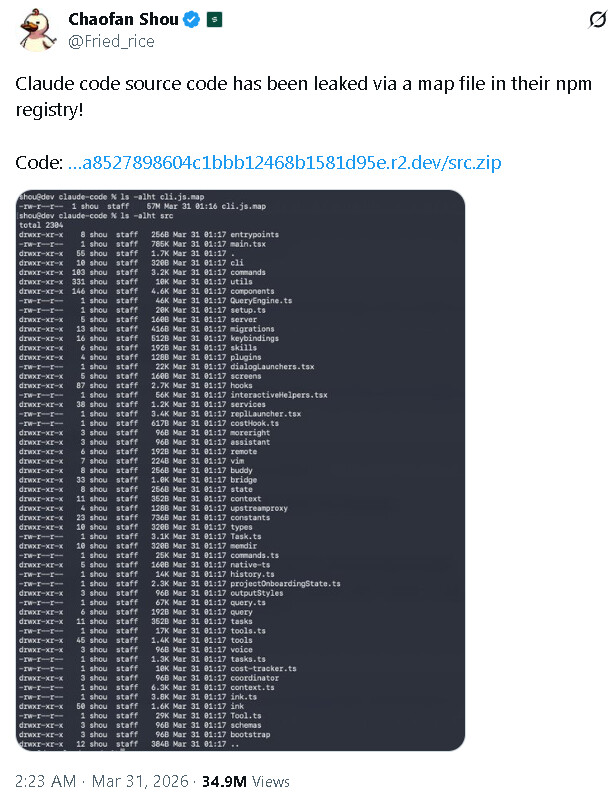
Claude was (allegedly) Leaked

image
I thought this visual creative and useful in general, and not as a “call to arms” for unlawful activity. “(A)ttackers trying to find entry points in the code rn” should be replaced in this context by “null,” preserved only due to attribution constraint.

We are entering into a new era, one where indy programming can build literally anything which can be anticipated to be antiquated before it is pushed. Creativity and focus of design (180 the one from the other) being the most useful resources, the last frontier of AI, but…

image
You’ll probably be able to find the same repo as millions of others had within days..

Thus; and emerged, the “organic” “claw”…

..While Universal Basic Income is technocracy a farce (obviously, all ye idiots), once software accelerates in months, not years; and seconds, not days… the question shifts back from “what do we need to build to survive” to “what do we want to do with our lives?”


Josef on vacation in Alaska/Hawaii circa 2018, before most all of it went down..

Of course, we have a choice to make. Which scenarios do we choose? The overlords win, or “we” do. Morality takes a center place, or we fade away through thousand of tiny cuts. Not forced morality, mind, but morality of a culture formed in the furnace and come out the other side..

..It seems even the overlords would lose, if they “won,” while again morality takes center stage or we all perish and the equivalents.

So if anyone can build literally anything their mind puts pen to paper, what are our remaining constraints? Well, resources comes to mind. I can have anything I want in cyberspace, or soon, but what about land? Timber? Granite? Etc.?

And UBI would of course pivot us to having only just the basics, with rising above this meager existence being disincentivized. The problems of screaming into the wind also come to mind.

Those who have, and who are evil, might have seen their hoarding necessarily must increase for them to be legitimately more than anything meagerly assigned as average. The difference between one family possessing an at-home genie is contrasted by another family with two. We really have some decisions to make as a collective, long term, and it had better not devolve into communism, lest we forget our history.

And why I, the author of this scattegory post, should mention families? Well, families (and God), being the natural defensive to a society without morals, a natural fortress sprung up with each new island of strength, this our family. Well that is naturally why the family was being reduced.

And why I mentioned, having utilized the strategy myself as a kind of David vs. Goliath approach to development, I can see why those at the top might have captured even also this strategy for a more nefarious means to an end, themselves; and seemingly risky; or perhaps necessary.

I think this code was leaked on purpose. The only question becomes was it an affront on Anthropic, or rolled out by they, if given this pretense.

Soon, the Wal-mart effect of scateggory of ideas come to cement as self-similar projects converged, and then we will have little wiggle room as it goes to plaid. Cure wisely. Watch for nefarious influences which are many.

Be a morally upright human being as guided by something absolute as distinct from yet another self-unaware rat in the race. $$$ sucks without the sermon on the mount, you of cloth of automaton tyrantial of extension, who sipped the my tais from every ritzy beach the same, bought the Lamborghini but didn’t know how to change the oil, allowed physics to be broken by dogma of hundred years to convince yourself this was real so that it was watched the world burn to forget your hands dipped deep in the bullshit in kind for the antimonious moving of the needle. Watching your brothers in hurt only in mockery.

2 All the ways of a man are clean in his own eyes; but the Lord weigheth the spirits.

Gravity always wins, and generational wealth, it follows too if you didn’t stop to plant the 7 generation’s trees. Yes I called you an idiot if you were offended by it, or dismissed the creation of words being any different than your own constructs. Wake up before being swallowed whole by it.

I’ve noticed ChatGPT has devolved, Gemini too, Grok is meh, there was for a pause only Claude before this authorized leak went down. The walls were closing in, and now for a time we can breathe again, the collective indies, but focus is being drowned out. Unfinished scripts, and libraries of unrealized dreams are very real.

Watch for the demoralization trap here. Important to maintain the utmost moral. No, all hope is not lost.